Integrating Application Launcher Data to the Core Server
App Launcher data can be integrated to the Core Server to map usage to the correct projects. These data can be used for project-based chargeback.
Project mapping is supported for reporting using data type (95) Usergroup License Use v3.0.
Configuring Export Session Job Connected to Core Server
File
When configuring the export session job with Export Method as File to create data files that can be used in producing the project mapping file:
-
In the App Launcher Server web interface, click the drop-down beside the username then select Configurations.
-
Configure the following export session job details:
Field Value Export Session Cron Use the default value Export Method File Export Session Path C:\ProgramData\OpeniT\Data\projectExport Session Job (File) Details
noteThe Export Session Path should be the path to the project directory, which is by default in
C:\ProgramData\OpeniT\Data\projectin Windows and in your defined data_dir ($ROOT_DATA_DIR/project) in Unix.UNC (
\\path_to_file) path is accepted. -
Click Save.
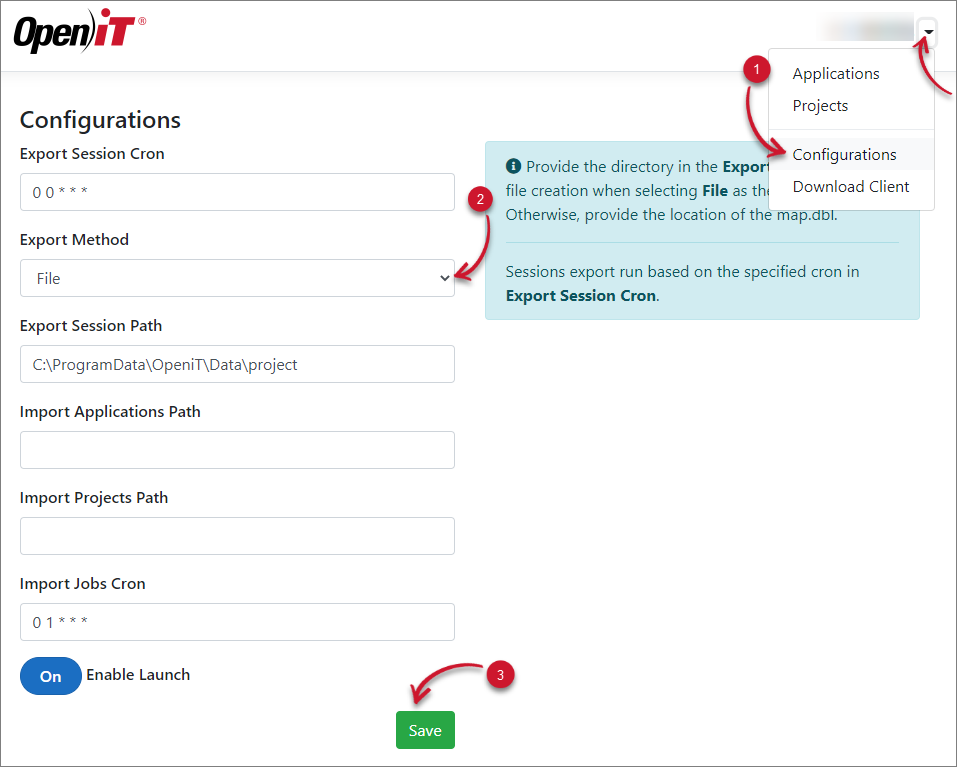 Export Session Job (File)
SQLite
When configuring the export session job with Export Method as SQLite to directly insert data to the Core Server mapping database:
-
In the App Launcher Server web interface, click the drop-down beside the username then select Configurations.
-
Configure the following export session job details:
Field Value Export Session Cron Use the default value Export Method SQLite Export Session Path C:\Program Files\OpeniT\Core\ReportingServer\db\map\map.dblExport Session Job (SQLite) Details
noteThe Export Session Path must be the location of the
map.dblin Core Server, which is commonly located atC:\Program Files\OpeniT\Core\ReportingServer\db\map\.UNC (
\\path_to_file) path is accepted. -
Click Save.
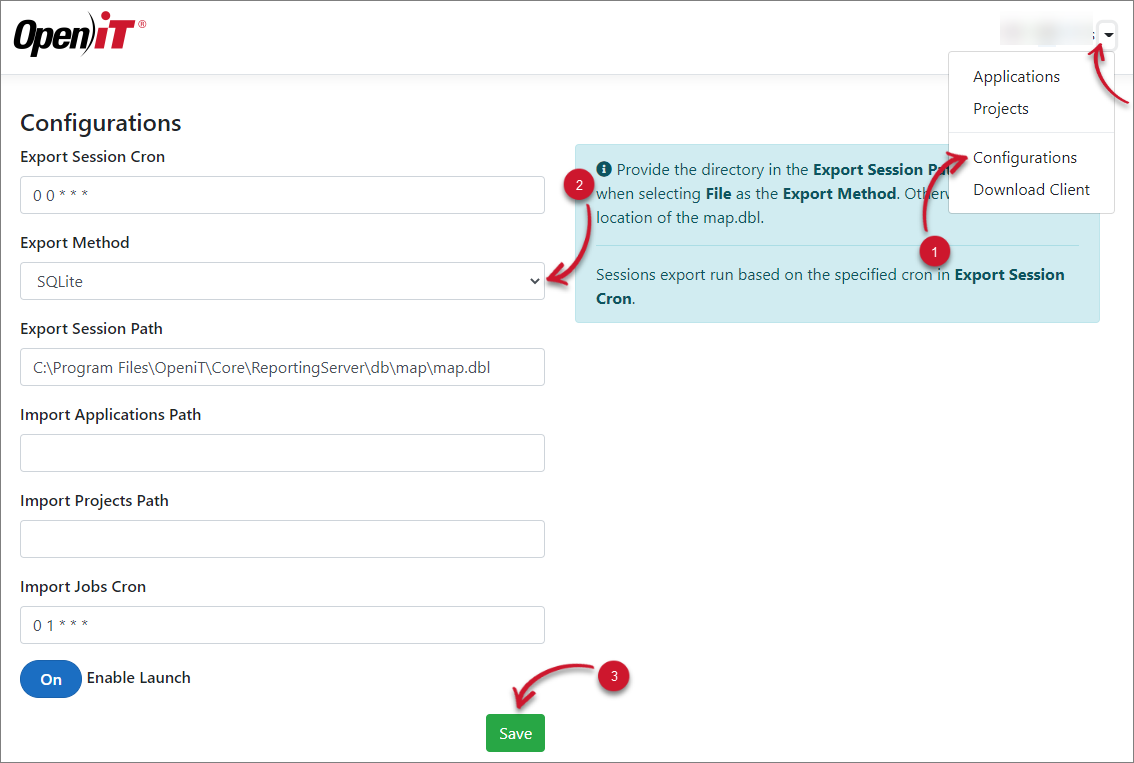 Export Session Job (SQLite)
Verifying Project Mapping Configuration in Core Server
Recommended reading: Core Server Mapping
The project mapping is configured in Core Server by default. It is important to verify that the project mapping file is properly configured for data processing.
Verify Project Mapping Source
-
Go to the Core Server web interface.
-
Log in using an Administrator account.
-
Navigate to Administration > Mapping.
-
Verify that a source named Project is configured.
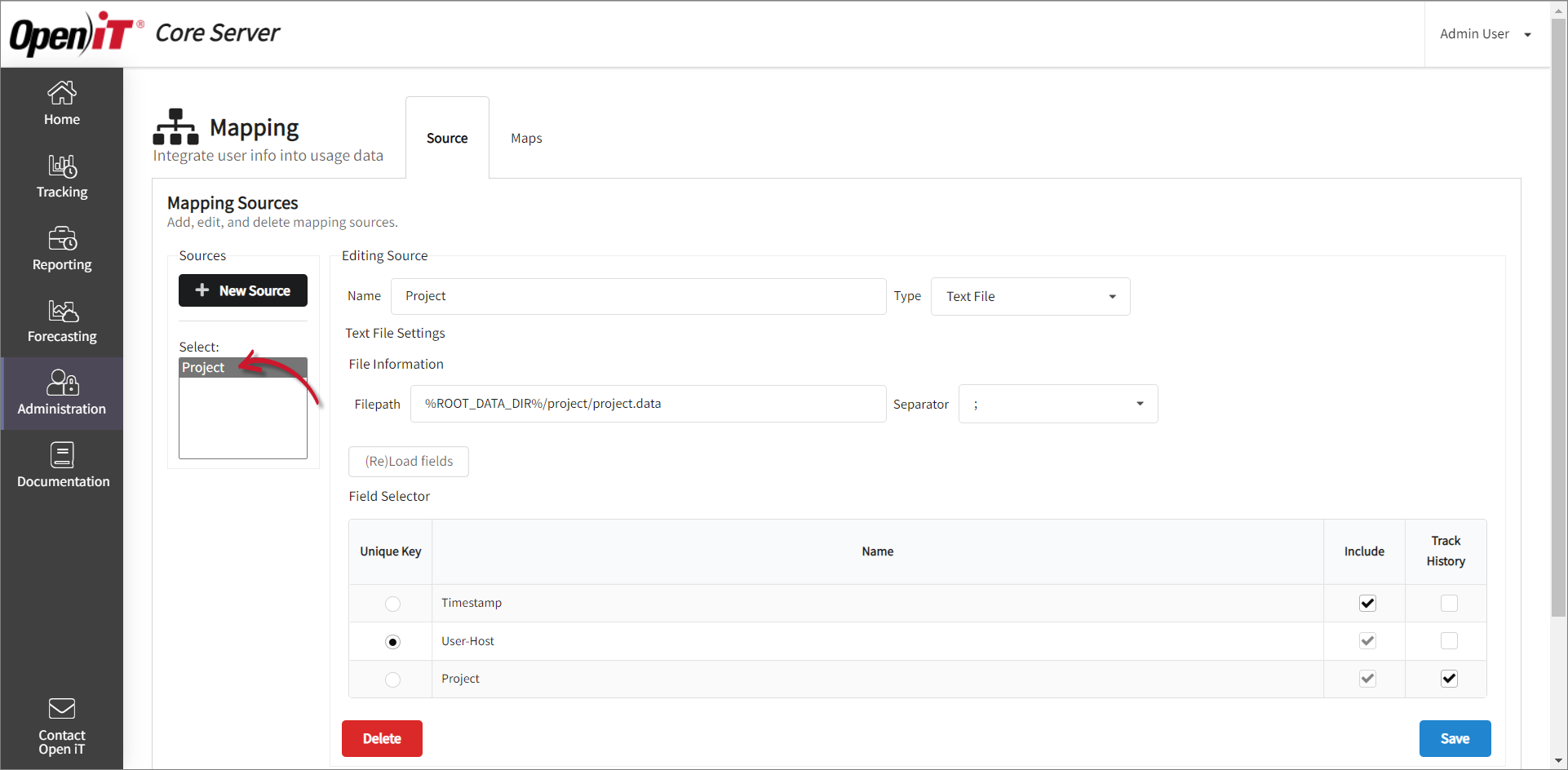 Verify Project Mapping Source
Verify Project Mapping Configuration
-
In Administration > Mapping, navigate to Maps.
-
Make sure that
project.mapis present in the list with license-multi as Type.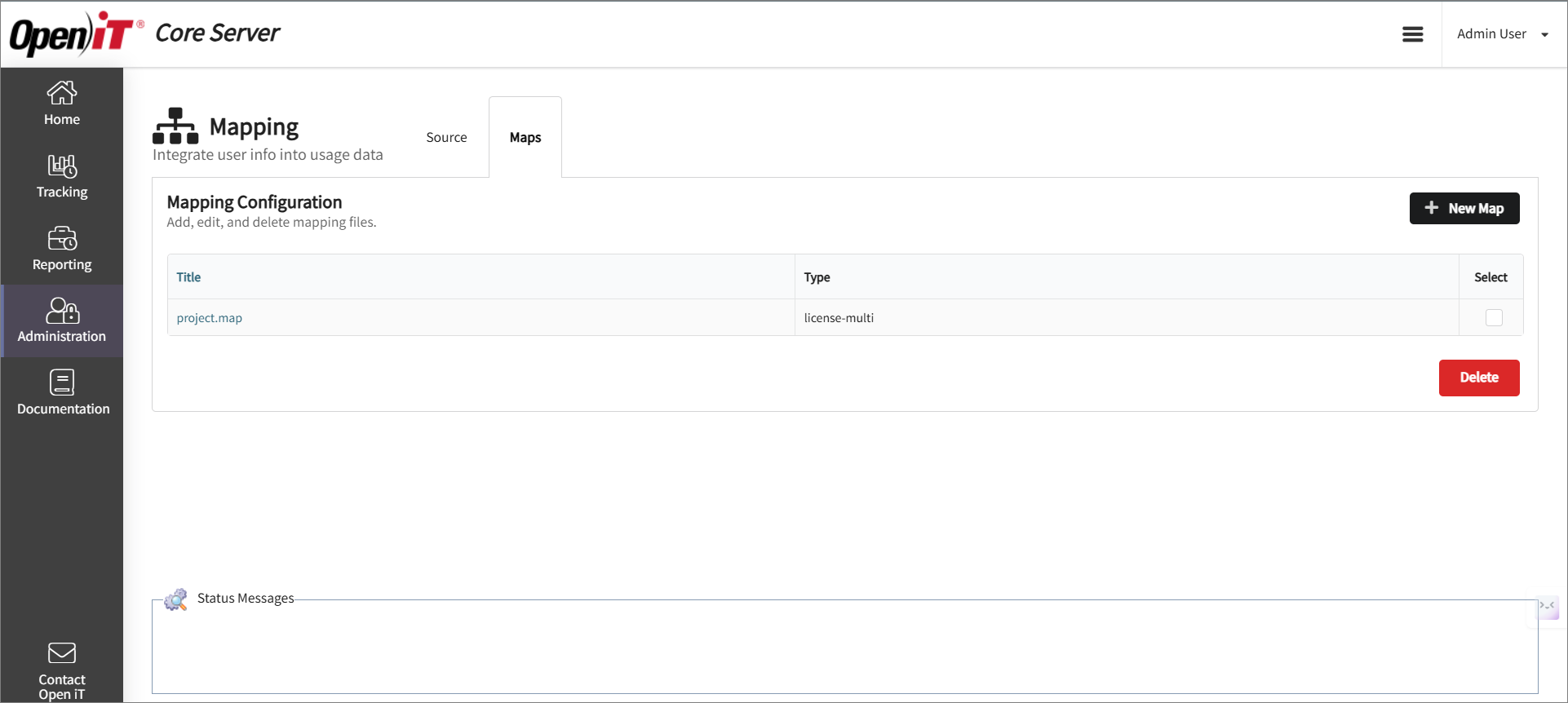 Verify Project Mapping
Next Steps?
Proceed with data regeneration in Core Server after configuring all the necessary mapping to apply the changes in the reports.
To report using data type (95) Usergroup License Use v3.0: