Manually Configuring the Application Launcher Connection to Ingress
Recommended reading: Ingress
If you installed or upgraded the App Launcher Server first before installing Ingress, establish their connection by following these steps depending on your installation or upgrade scenario:
Local Setup
If the App Launcher Server and Ingress are installed on the same machine, you only need to restart the App Launcher Server website in IIS:
-
Open the Internet Information Services (IIS) Manager.
-
Under the Connections pane, expand the root node and Sites.
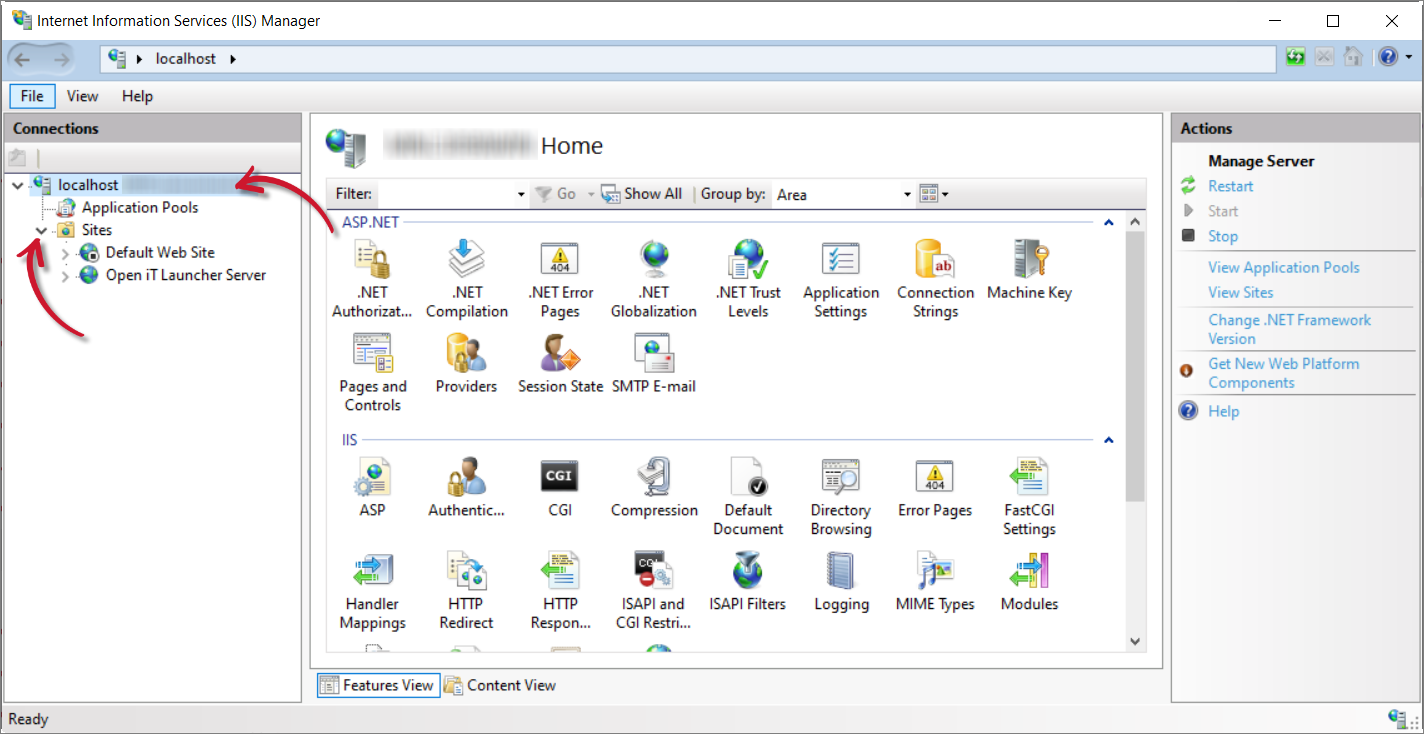 IIS: Home
-
Select Open iT Launcher Server.
-
Under the Actions pane, in Manage Website, click Stop.
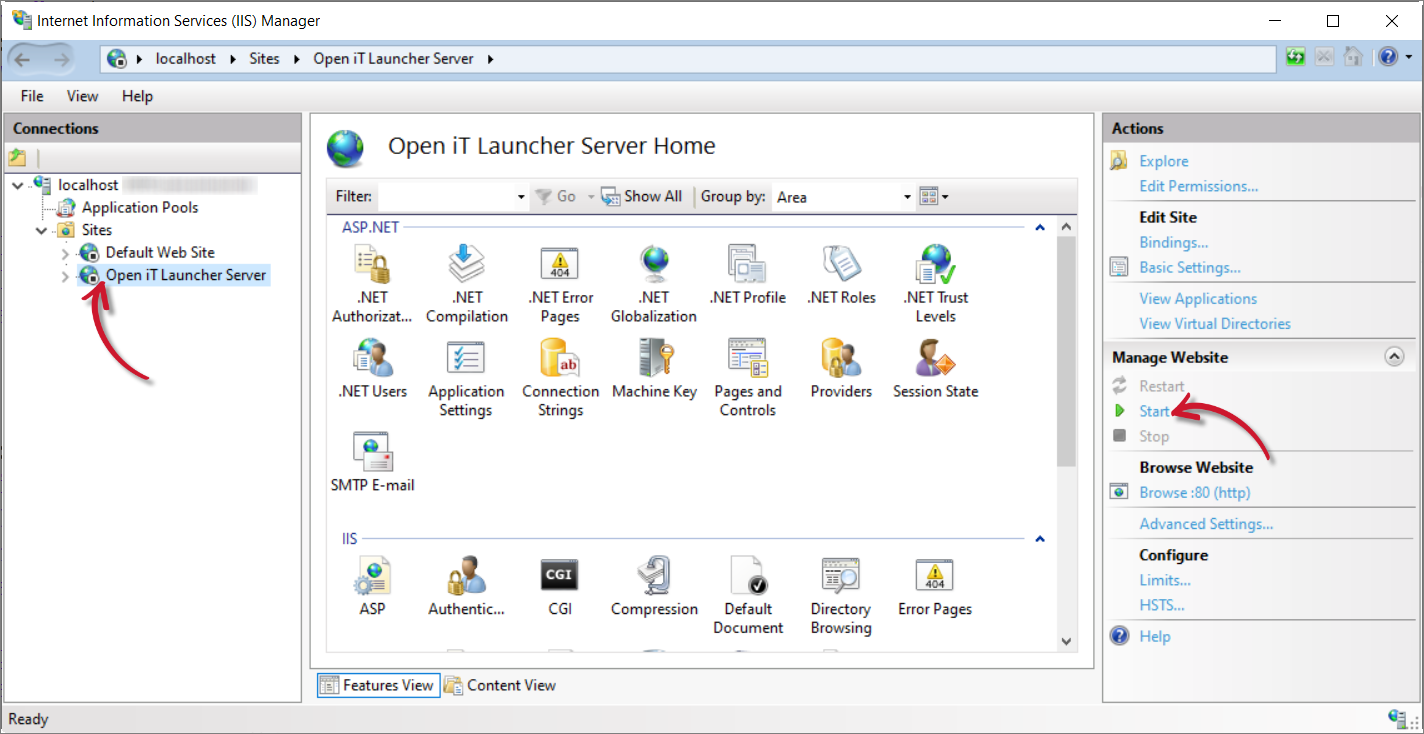 IIS: Stop Website
-
Click Application Pools.
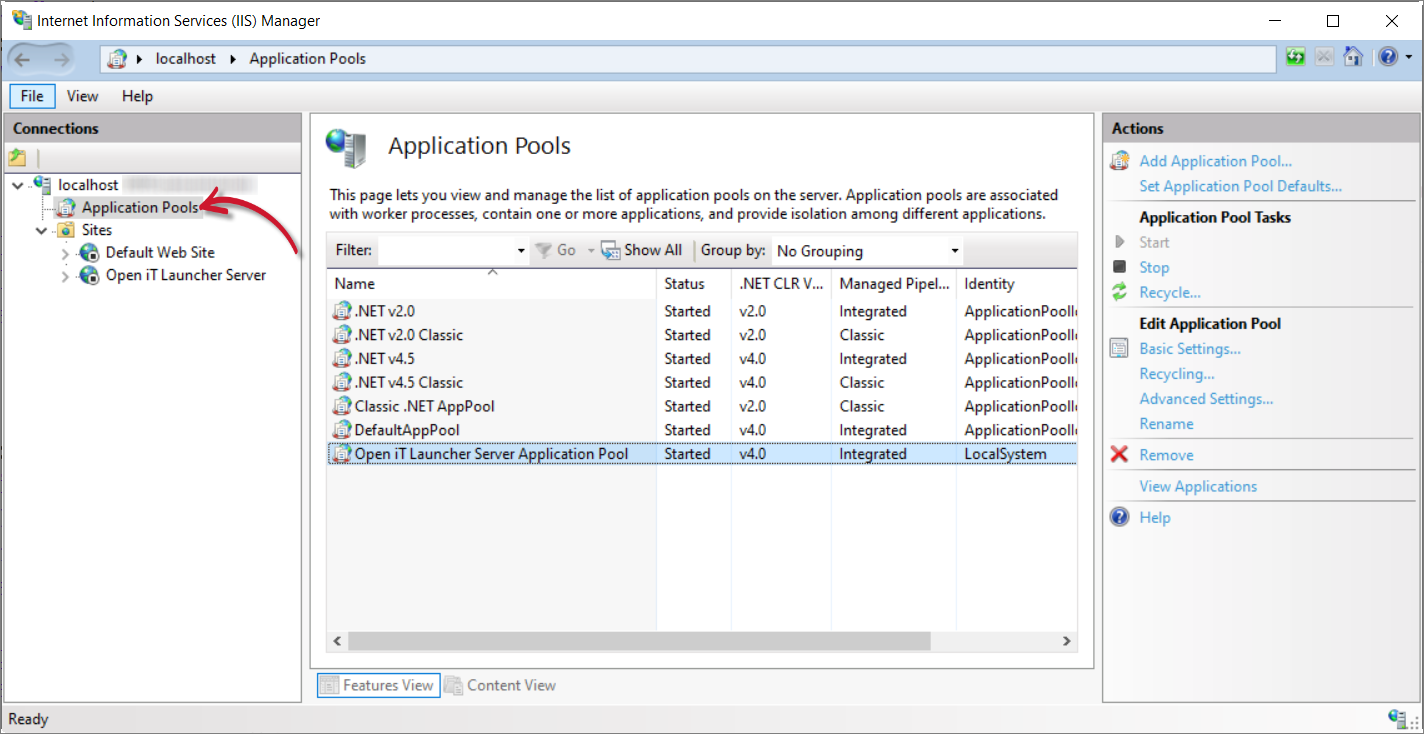 IIS: Application Pools
-
Select Open iT Launcher Server Application Pool.
-
Under the Actions pane, in Application Pool Tasks, click Stop.
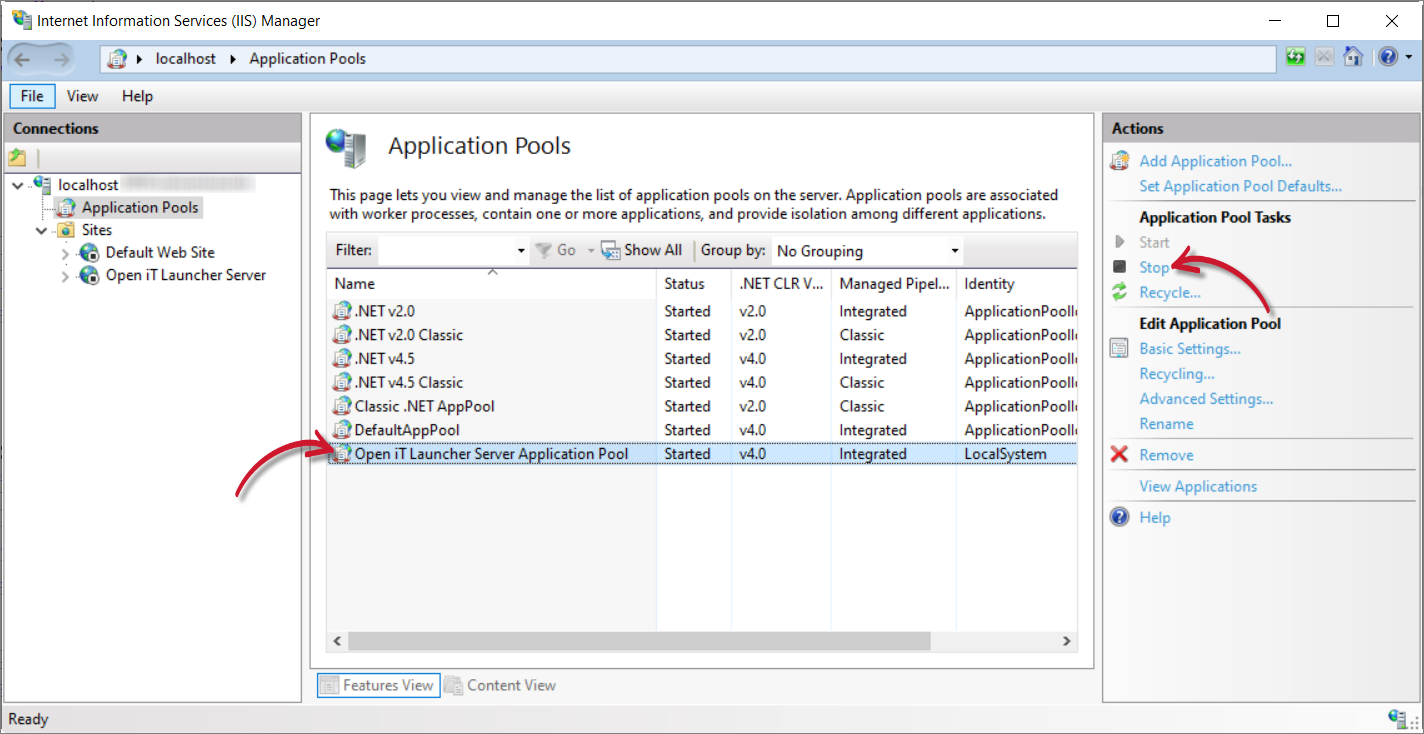 IIS: Stop Application Pool
-
Select Open iT Launcher Server again.
-
Under the Actions pane, in Manage Website, click Start.
IIS: Start Website
-
Click Application Pools again.
-
Select Open iT Launcher Server Application Pool.
-
Under the Actions pane, in Application Pool Tasks, click Start.
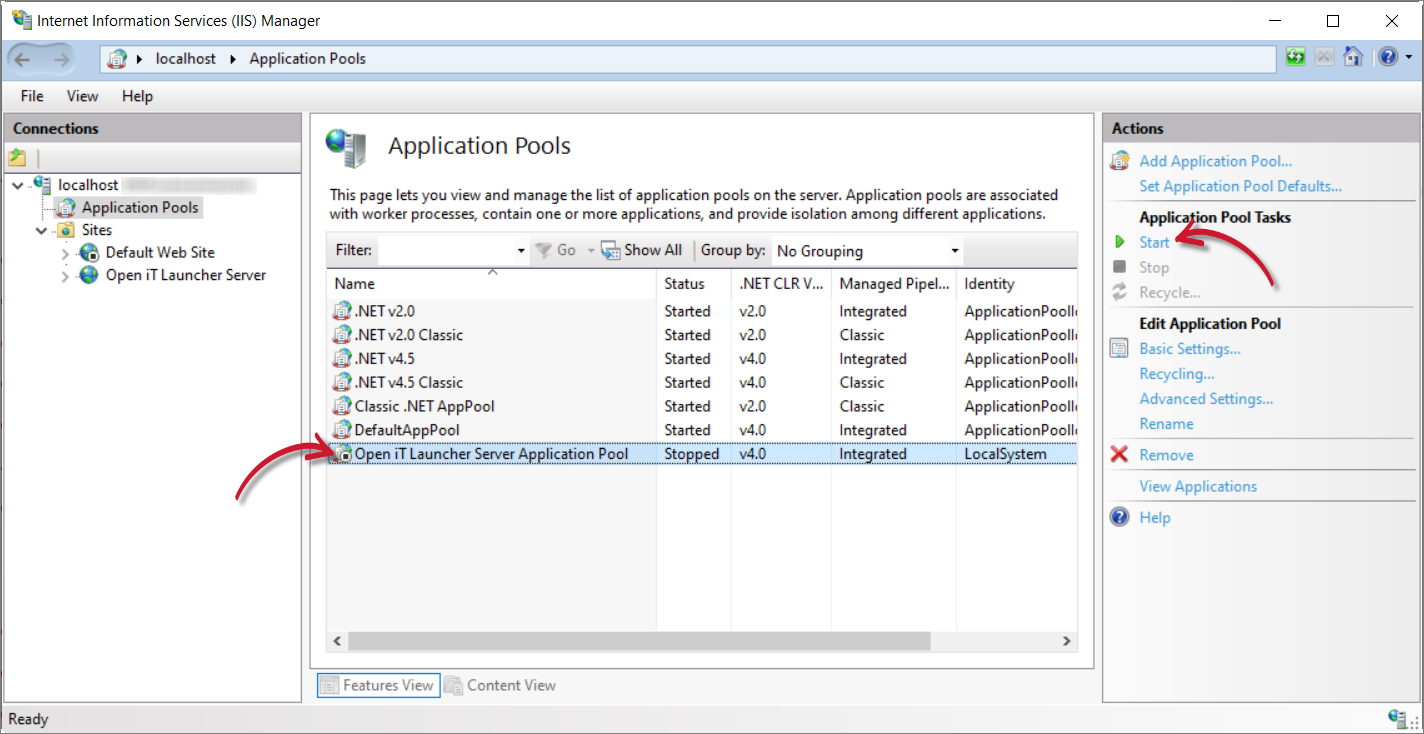 IIS: Start Application Pool
Remote Setup
If the App Launcher Server and Ingress are installed on separate machines, make sure that the App Launcher Server knows the Ingress URL to connect to, then restart the App Launcher Server website in IIS.
If the Ingress URL was not specified during App Launcher Server installation:
-
Go to the installation folder, which is
C:\Program Files\OpeniT\Launcherby default. -
Open the
Ingress.jsonfile. -
Change the value of uri to the Ingress URL (e.g.,
https://customer.openit.com).Sample Ingress.json{
"uri": "https://customer.openit.com",
"checkSslValidity": false
} -
Save the file.
Once the Ingress URL is specified on the necessary configuration file:
-
Open the Internet Information Services (IIS) Manager.
-
Under the Connections pane, expand the root node and Sites.
IIS: Home
-
Select Open iT Launcher Server.
-
Under the Actions pane, in Manage Website, click Stop.
IIS: Stop Website
-
Click Application Pools.
IIS: Application Pools
-
Select Open iT Launcher Server Application Pool.
-
Under the Actions pane, in Application Pool Tasks, click Stop.
IIS: Stop Application Pool
-
Select Open iT Launcher Server again.
-
Under the Actions pane, in Manage Website, click Start.
IIS: Start Website
-
Click Application Pools again.
-
Select Open iT Launcher Server Application Pool.
-
Under the Actions pane, in Application Pool Tasks, click Start.
IIS: Start Application Pool