Server
Enable Application Initialization in Internet Information Services (IIS) first before upgrading the App Launcher Server.
With Ingress Setup
Use this guide if the App Launcher Server will connect to Ingress (local or remote).
Install Open iT Ingress first before installing App Launcher Server version 10.
This assumes that Ingress is properly installed on the same machine where the App Launcher Server will be installed and is accessible. Choose among the upgrade methods:
Upgrading through the Windows Installer Interface
-
Double-click the new installer.
-
In the setup wizard, click Next.
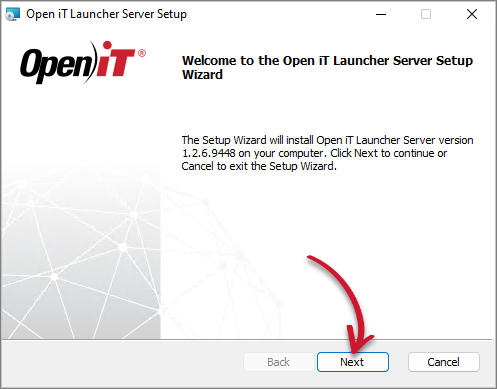 Welcome Screen
-
Read and accept the License Agreement, then click Next.
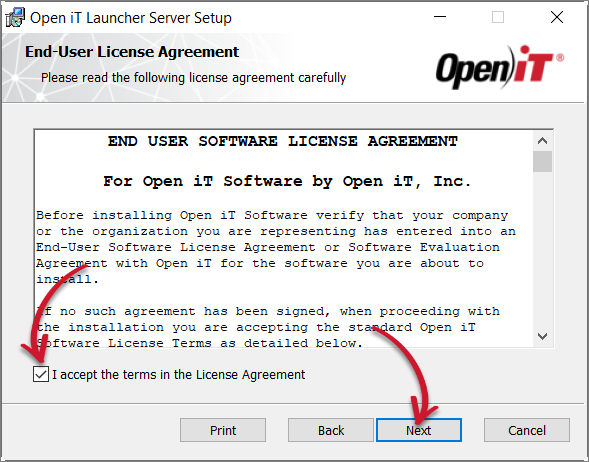 End-User License Agreement
-
The installer automatically detects the previous installation directory. Click Change to specify new directories; otherwise, click Next.
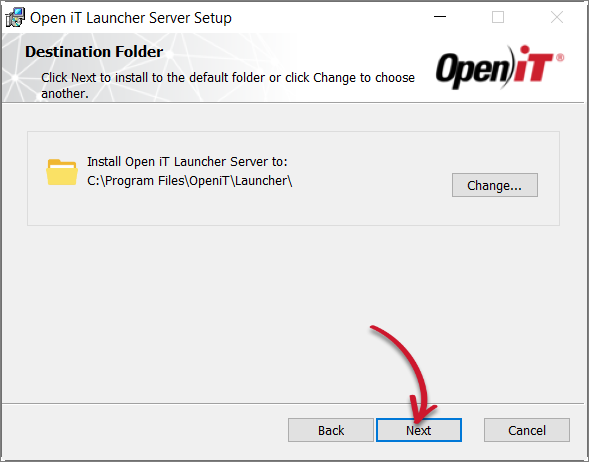 Destination Folder
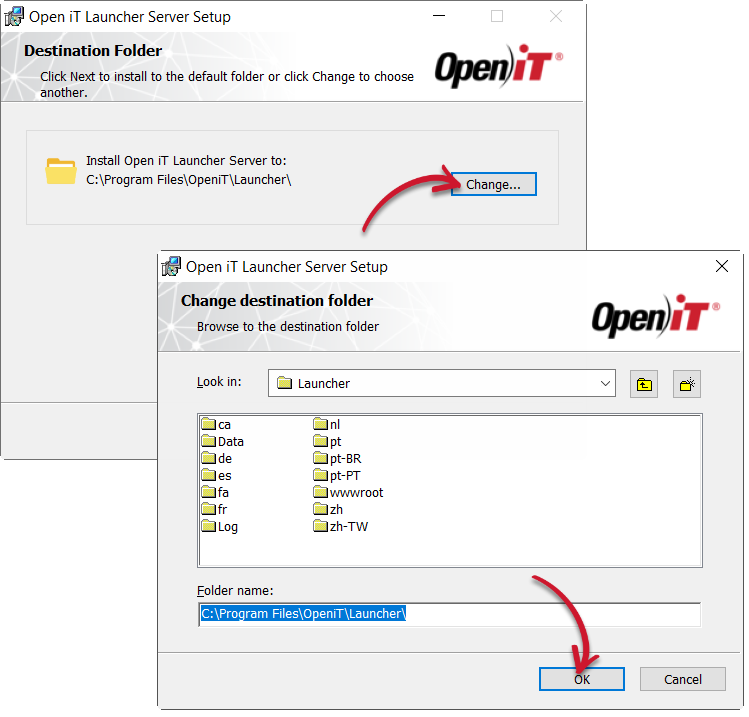 Changing the Destination Folder
-
Use the configured port number or specify the desired value.
Click Next.
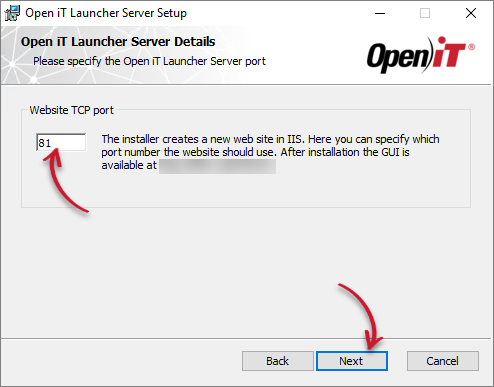 Specifying the Port Number
-
Click Install to start the upgrade process.
Alternatively, click Back to review any installation setting.
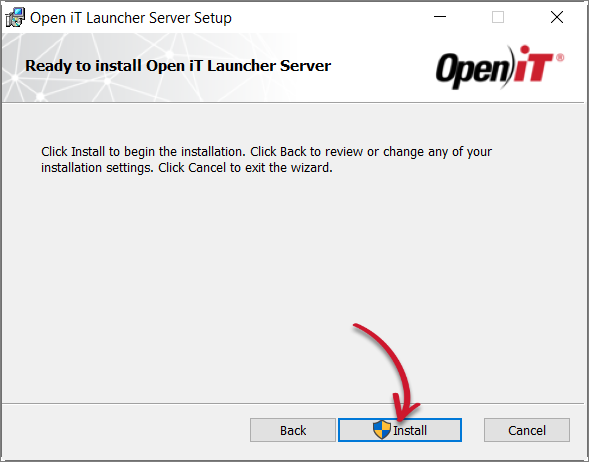 Ready to Install
-
The installer will set up all necessary files on the computer. Click Finish.
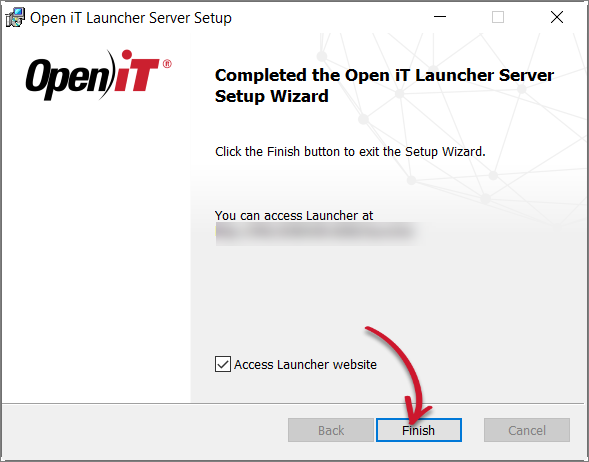 Complete Installation
Upgrading through the Command Line
-
Open a command prompt with Administrator level privileges.
-
Run the following command:
Command Syntaxmsiexec /i <path_to_installer> /l*v <path_to_logfile> [/quiet] [/passive] <INGRESSURI> <INSTALLDIR> <SERVERPORT>Parameter Description /iUse this parameter for a normal installation <path_to_installer>Use this parameter to specify the path to the installer file /l*vUse this parameter to turn on logging of all information, including verbose output <path_to_logfile>Use this parameter to specify the path to the output log file /quietUse this optional parameter to run the installation in silent mode, meaning no user interaction required /passiveUse this optional parameter to run the installation in unattended mode, showing only a progress bar <INGRESSURI>Use this optional property to specify the Open iT Ingress URI where the App Launcher Server will connect to; follow the http(s)://<ingress_hostname>:<ingress_port_number>format<INSTALLDIR>Use this optional property to specify the path where the Open iT files will be installed; the default path is C:\Program Files\OpeniT\Launcher<SERVERPORT>Use this optional property to specify the port number of the website; the default value is 81 Command Parameters
noteThe installation will use the default directories and port number if these properties are unspecified.
Also, the installer will use the Windows Installer Interface if the process mode (
/quietor/passive) is unspecified.
Examples
To install OpeniTLauncherServer_x64.msi from C:\Installers in unattended mode with all logging information stored in an output log file at C:\install.log, and using the default directory and https://customer.openit.com as the Ingress URI:
msiexec /i "C:\Installers\OpeniTLauncherServer_x64.msi" /l*v "C:\install.log" /passive INGRESSURI=https://customer.openit.com
To install OpeniTLauncherServer_x64.msi from C:\Installers in silent mode with all logging information stored in an output log file at C:\install.log, and using a preferred installation directory and default port number:
msiexec /i "C:\Installers\OpeniTLauncherServer_x64.msi" /l*v "C:\install.log" /quiet INSTALLDIR="C:\AppLauncherServer"
To install OpeniTLauncherServer_x64.msi from C:\Installers in unattended mode with all logging information stored in an output log file at C:\install.log, and using the default directory and 82 as the port number:
msiexec /i "C:\Installers\OpeniTLauncherServer_x64.msi /l*v "C:\install.log" /passive SERVERPORT="82"
When using the passive mode, wait until the process bar dialog disappears.
When using the quiet mode, verify that the installation is complete by opening the Task Manager and checking in the Details tab if the msiexec process is still running.
Remote Ingress Setup
Install Open iT Ingress first before upgrading App Launcher Server.
Use this guide if Ingress is installed remotely or on a separate machine than the App Launcher Server. This assumes that Ingress is properly installed, accessible, and the URI is ready. Choose among the upgrade methods:
Upgrading through the Windows Installer Interface
-
Double-click the new installer.
-
In the setup wizard, click Next.
Welcome Screen
-
Read and accept the License Agreement, then click Next.
End-User License Agreement
-
The installer automatically detects the previous installation directory. Click Change to specify new directories; otherwise, click Next.
Destination Folder
Changing the Destination Folder
-
Use the configured port number or specify the desired value.
Click Next.
Specifying the Port Number
-
Specify the Open iT Ingress URI where the App Launcher Server will connect to, then click Next.
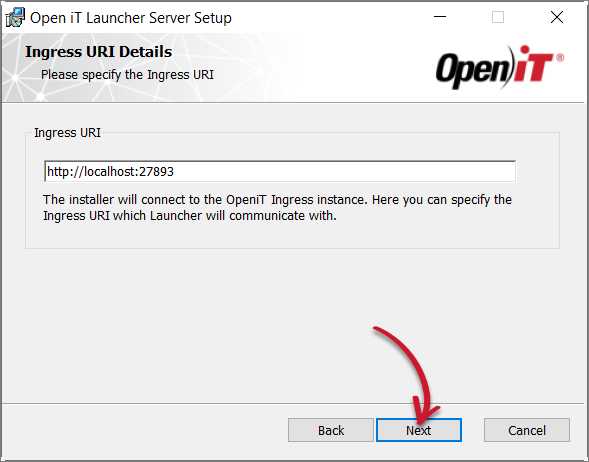 Ingress URI Details
A warning prompt will appear if the Open iT Ingress is inaccessible. This may also occur if Open iT Ingress is not yet installed.
Click Continue to proceed with the installation.
 Warning for Inaccessible Ingress URI
-
Click Install to start the upgrade process.
Alternatively, click Back to review any installation setting.
Ready to Install
-
The installer will set up all necessary files on the computer. Click Finish.
Complete Installation
Upgrading through the Command Line
-
Open a command prompt with Administrator level privileges.
-
Run the following command:
Command Syntaxmsiexec /i <path_to_installer> /l*v <path_to_logfile> [/quiet] [/passive] <INGRESSURI> <INSTALLDIR> <SERVERPORT>Parameter Description /iUse this parameter for a normal installation <path_to_installer>Use this parameter to specify the path to the installer file /l*vUse this parameter to turn on logging of all information, including verbose output <path_to_logfile>Use this parameter to specify the path to the output log file /quietUse this optional parameter to run the installation in silent mode, meaning no user interaction required /passiveUse this optional parameter to run the installation in unattended mode, showing only a progress bar <INGRESSURI>Use this optional property to specify the Open iT Ingress URI where the App Launcher Server will connect to; follow the http(s)://<ingress_hostname>:<ingress_port_number>format<INSTALLDIR>Use this optional property to specify the path where the Open iT files will be installed; the default path is C:\Program Files\OpeniT\Launcher<SERVERPORT>Use this optional property to specify the port number of the website; the default value is 81 Command Parameters
noteThe installation will use the default directories and port number if these properties are unspecified.
Also, the installer will use the Windows Installer Interface if the process mode (
/quietor/passive) is unspecified.
Examples
To install OpeniTLauncherServer_x64.msi from C:\Installers in unattended mode with all logging information stored in an output log file at C:\install.log, and using the default directory and https://customer.openit.com as the Ingress URI:
msiexec /i "C:\Installers\OpeniTLauncherServer_x64.msi" /l*v "C:\install.log" /passive INGRESSURI=https://customer.openit.com
To install OpeniTLauncherServer_x64.msi from C:\Installers in silent mode with all logging information stored in an output log file at C:\install.log, and using a preferred installation directory and default port number:
msiexec /i "C:\Installers\OpeniTLauncherServer_x64.msi" /l*v "C:\install.log" /quiet INSTALLDIR="C:\AppLauncherServer"
To install OpeniTLauncherServer_x64.msi from C:\Installers in unattended mode with all logging information stored in an output log file at C:\install.log, and using the default directory and 82 as the port number:
msiexec /i "C:\Installers\OpeniTLauncherServer_x64.msi /l*v "C:\install.log" /passive SERVERPORT="82"
When using the passive mode, wait until the process bar dialog disappears.
When using the quiet mode, verify that the installation is complete by opening the Task Manager and checking in the Details tab if the msiexec process is still running.
Without Ingress Setup
Use this guide if the App Launcher Server will be standalone and no connection to Ingress will be made. Choose among the upgrade methods:
Upgrading through the Windows Installer Interface
-
Double-click the new installer.
-
In the setup wizard, click Next.
Welcome Screen
-
Read and accept the License Agreement, then click Next.
End-User License Agreement
-
The installer automatically detects the previous installation directory. Click Change to specify new directories; otherwise, click Next.
Destination Folder
Changing the Destination Folder
-
Use the configured port number or specify the desired value.
Click Next.
Specifying the Port Number
-
Click Next to skip the prompt for specifying the Open iT Ingress URI.
Ingress URI Details
Click Continue to proceed with the installation.
Warning for Inaccessible Ingress URI
-
Click Install to start the upgrade process.
Alternatively, click Back to review any installation setting.
Ready to Install
-
The installer will set up all necessary files on the computer. Click Finish.
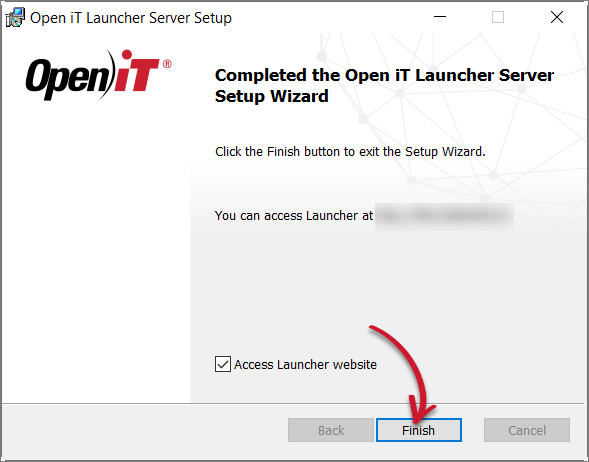 Complete Installation
Upgrading through the Command Line
-
Open a command prompt with Administrator level privileges.
-
Run the following command:
Command Syntaxmsiexec /i <path_to_installer> /l*v <path_to_logfile> [/quiet] [/passive] <INSTALLDIR> <SERVERPORT>Parameter Description /iUse this parameter for a normal installation <path_to_installer>Use this parameter to specify the path to the installer file /l*vUse this parameter to turn on logging of all information, including verbose output <path_to_logfile>Use this parameter to specify the path to the output log file /quietUse this optional parameter to run the installation in silent mode, meaning no user interaction required /passiveUse this optional parameter to run the installation in unattended mode, showing only a progress bar <INSTALLDIR>Use this optional property to specify the path where the Open iT files will be installed; the default path is C:\Program Files\OpeniT\Launcher<SERVERPORT>Use this optional property to specify the port number of the website; the default value is 81 Command Parameters
noteThe installation will use the default directories and port number if these properties are unspecified.
Also, the installer will use the Windows Installer Interface if the process mode (
/quietor/passive) is unspecified.
Examples
To install OpeniTLauncherServer_x64.msi from C:\Installers in unattended mode with all logging information stored in an output log file at C:\install.log, and using the default directory and port number:
msiexec /i "C:\Installers\OpeniTLauncherServer_x64.msi" /l*v "C:\install.log" /passive
To install OpeniTLauncherServer_x64.msi from C:\Installers in silent mode with all logging information stored in an output log file at C:\install.log, and using a preferred installation directory and default port number:
msiexec /i "C:\Installers\OpeniTLauncherServer_x64.msi" /l*v "C:\install.log" /quiet INSTALLDIR="C:\AppLauncherServer"
To install OpeniTLauncherServer_x64.msi from C:\Installers in unattended mode with all logging information stored in an output log file at C:\install.log, and using the default directory and 82 as the port number:
msiexec /i "C:\Installers\OpeniTLauncherServer_x64.msi /l*v "C:\install.log" /passive SERVERPORT="82"
When using the passive mode, wait until the process bar dialog disappears.
When using the quiet mode, verify that the installation is complete by opening the Task Manager and checking in the Details tab if the msiexec process is still running.
Next Steps?
After upgrading, proceed with verifying the upgrade.
If you upgraded the App Launcher Server first and then installed Ingress later, proceed with manually configuring the Application Launcher connection to Ingress.