Installation Verification
Verifying the Created Directories and Files
Go to the installation directory, which is C:\Program Files\OpeniT\Launcher by default, and verify that the following directories and files exist:
- Data - contains database files
- Log - contains troubleshooting logs created by the App Launcher binary
- wwwroot - contains files used by the web application
- appsettings.json - contains application settings for web access and authentication
- OpeniT.Launcher.Web.exe - the App Launcher Server application executable
- web.config - contains specific configuration for web service
- Other DLL files
Verifying the Website in IIS
Upon installation, a website is created and hosted in Internet Information Services (IIS).
To verify:
-
Open IIS (Internet Information Services) in the machine with App Launcher Server.
-
In the Connections pane, expand the root node and Sites.
-
Make sure that Open iT Launcher Server is present.
-
Click Open iT Launcher Server, and in the dashboard, double-click Authentication.
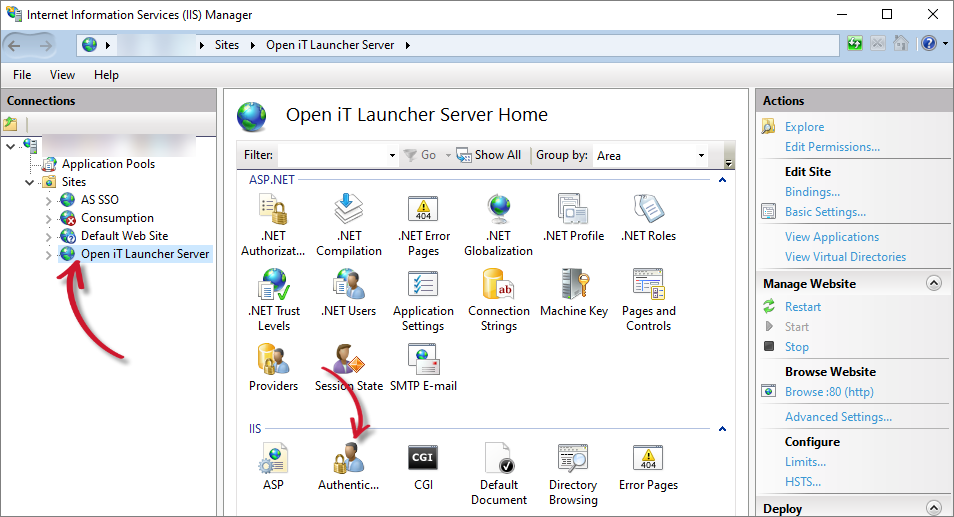 Verifying Website
-
Make sure that Windows Authentication is enabled.
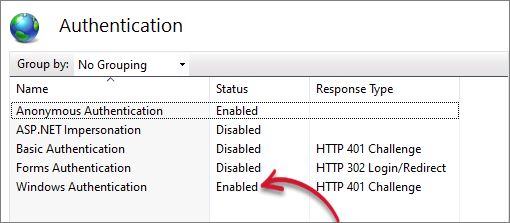 Verifying Website Authentication
Next Step?
If you installed the App Launcher Server first and then installed Ingress later, proceed with manually configuring the Application Launcher connection to Ingress.